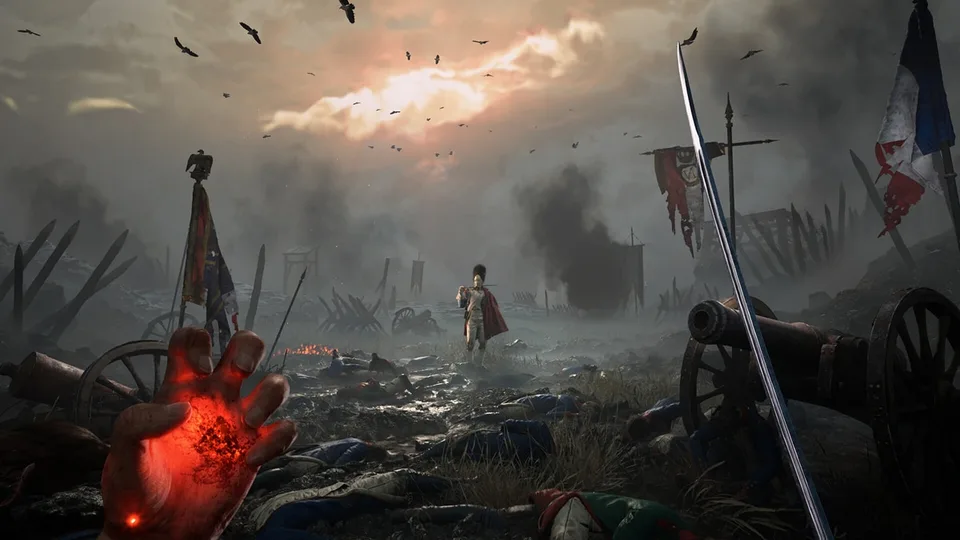
How to Fix Valor Mortis Crashing, Startup Errors, and CTD on PC
Discover proven troubleshooting steps to fix Valor Mortis crashing on startup, black screen errors, and crashes to desktop on your PC.
Published: Valor Mortis Wiki Editorial Team
Video Guide
How To Fix Valor Mortis Crashing on Startup, Crash to Desktop (CTD), Black Screen Error On PCTable of Contents
Understanding Valor Mortis Crashing Issues on PC
When launching a new title, running into unexpected system freezes, black screens, or sudden closures can quickly ruin your gaming session. Players diving into Valor Mortis, developed by One More Level, have reported various stability hurdles—ranging from startup failures to mid-game crashes to desktop (CTD).
Troubleshooting these performance hitches requires a systematic approach. Rather than relying on guesswork, you can isolate the root cause by examining your hardware configuration, software environment, and game file integrity. Below is a comprehensive diagnostic guide designed to help you stabilize your game and get back into the action.
Checking System Requirements and Hardware Compatibility
The very first step in resolving performance instability is verifying whether your PC meets the official hardware prerequisites. Developers outline specific minimum and recommended specifications on the Valor Mortis Steam Store Page.
If your hardware falls short of these baseline requirements, the game may struggle to render textures or process physics, leading to immediate crashes. Additionally, community reports highlight that background overclocking profiles on your CPU or GPU can introduce micro-instabilities. If you have overclocked your components, revert them to default clock speeds to see if stability improves.
Compare your CPU, RAM, and GPU against the official Steam store requirements.
Disable any active CPU or GPU overclocking utilities running in the background.
Ensure your hardware temperatures remain within safe operating limits during startup.
Verifying Game Files and Storage Configuration
Corrupted installation files are a frequent culprit behind startup errors and sudden closures. Steam offers a built-in verification tool to replace missing or damaged assets without requiring a full reinstall.
Open the Steam client and navigate to your Library section.
Right-click on Valor Mortis and select Properties.
Go to the Installed Files tab and click on Verify integrity of game files.
Wait for the verification process to complete, then test launching the game.
Beyond file integrity, storage speed plays a vital role in modern game stability. Installing the game on a traditional mechanical hard drive (HDD) can cause asset streaming bottlenecks, resulting in freezing or crashing.
To check your storage drive via Steam, click on Steam > Settings > Storage. If the game is currently located on an HDD, use the built-in move option to transfer it to a high-speed Solid State Drive (SSD).
Updating Graphics Drivers and Windows OS
Outdated graphics drivers frequently clash with newly released game builds, triggering black screens and driver-crash-to-desktop errors. Ensuring your system software is fully updated helps maintain compatibility.
For NVIDIA, AMD, or Intel graphics card users, visit your respective manufacturer's official driver portal or use utility software like Device Manager to check for updates. Expand your display adapters, right-click your dedicated GPU, select Update driver, and choose automatic search.
Simultaneously, check for pending operating system updates by opening your Windows search bar, typing "Check for updates," and installing any available system patches.
Adjusting Launch Options and DirectX Parameters
If the game fails to initialize or crashes immediately upon startup, forcing a specific graphics API through Steam launch parameters can bypass compatibility roadblocks.
Open your Steam Library and right-click Valor Mortis.
Select Properties and stay on the General tab.
Locate the Launch Options text field.
Enter -dx11 and launch the game to test stability. If crashes persist, try -dx12 or -vulkan.
Remember to clear the launch option if a particular parameter does not resolve your specific issue before moving on to alternative troubleshooting methods.
Managing Overlays, Background Apps, and Security Software
Third-party overlays and aggressive security suites often hook into a game's rendering pipeline, triggering anti-cheat conflicts or unexpected closures.
Overlay and Monitoring Tools
Applications that display frame rates or capture gameplay can interfere with game execution. Temporarily disable the following tools:
Steam In-Game Overlay (toggle off via game properties in Steam)
Discord overlay
NVIDIA GeForce Experience or AMD capture overlays
Xbox Game Bar
Hardware monitoring and performance tuning utilities
Antivirus and Firewall Interferences
Overzealous antivirus programs may flag game executables as false positives, blocking necessary background processes.
Open Windows Security and navigate to Virus & threat protection settings to temporarily toggle off real-time protection.
Ensure the game executable is granted explicit permission through your Windows Defender Firewall.
Alternatively, perform a clean boot by typing msconfig in your run window (Windows + R), navigating to the Services tab, checking Hide all Microsoft services, and clicking Disable all before restarting your PC.
Advanced System Fixes: Visual C++ and Virtual Memory
When basic troubleshooting steps fail, addressing missing system dependencies or memory allocation limits often resolves persistent crashing loops.
Installing Visual C++ Redistributables
Missing or corrupted runtime libraries can prevent games from initializing. Download and install the latest supported Microsoft Visual C++ redistributable packages from official Microsoft channels. Run the installer, select Repair or Install, and restart your computer once the process finishes.
Tuning Virtual Memory (Page File)
Insufficient virtual memory can cause memory-heavy titles to crash when asset demands peak. You can adjust your page file settings manually:
Search for View advanced system settings in the Windows taskbar.
Under the Advanced tab, click Settings under Performance, then go to the Advanced tab again and click Change under Virtual memory.
Uncheck automatic management, select the drive where your game is installed, and choose Custom size.
Set the Initial size to 12288 MB and the Maximum size to 24576 MB. Click Set, then OK, and restart your PC.
Reinstalling the Game as a Last Resort
If none of the preceding solutions restore stability, a clean reinstallation may be necessary to clear out deeply rooted file corruption.
Navigate to your Steam Library, right-click the title, hover over Manage, and select Uninstall. Once the files are removed, restart your computer to clear temporary cache files. Open Steam and download the game afresh onto your SSD.
For additional community-driven insights, patch notes, and known launch-day issues reported by other players, you can browse active discussions directly on the official Valor Mortis Steam Community Hub.